How to create a competition
-
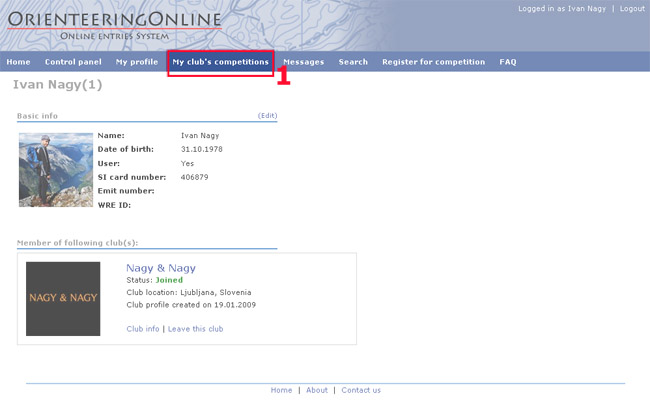
After you login with your username and password, click the "My club's competitions" button (1).
-
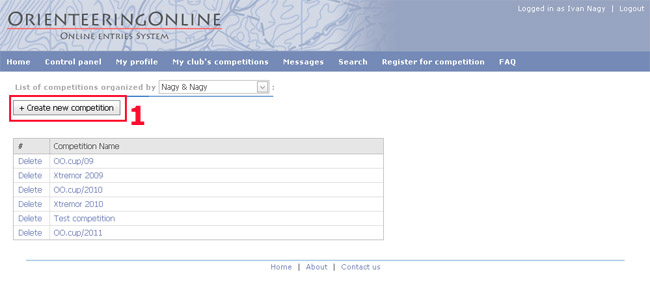
Once you are on "My club's competitions" page click "Create new competition button".
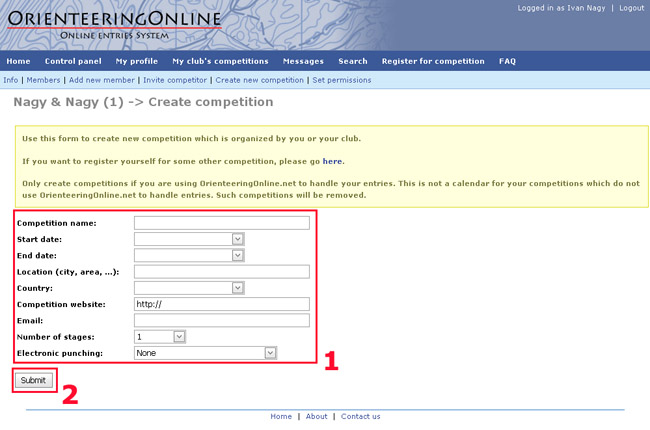
- On "Create new competition" page fill in all the event data and click submit.
Then you will be taken to competition's "Basic Info" page.
- On "Basic Info" page you need to fill in the entry deadlines which you will later use to set up entry fees.
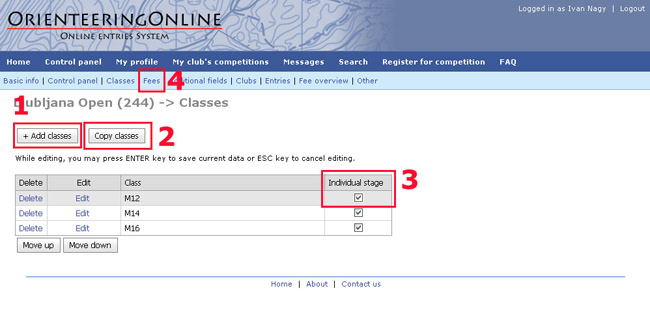
Before you make online entries publically available, you also need to set up the Classes.
-
On "Classes" page you need to add classes. You can do that either manually or you can import
classes from other past events for which you used OO entry system. Multiday event organizers can also use
Individual stage column to determine if runners may enter individual stages (for example only 1st and
2nd stage in a 3 day event).
The last step before making online entries available is to set up fees.
If you don't want to use OO service to handle fees you can skip the following step.
-
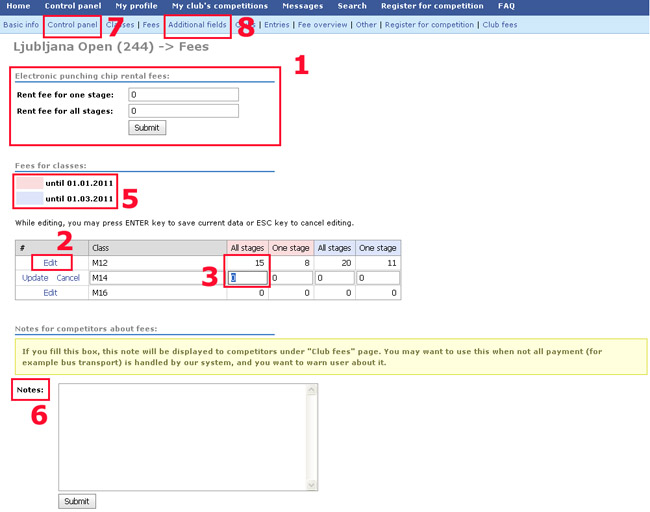
On the fees page you can fill in the amounts for SI card rental. This amount will be automatically added
to all competitors who leave their SI or EMIT number box empty.
Now you can edit start fees for all classes. Please check the colour for each
deadline to be sure that the right data is input.
In the "Notes" box you can enter any text that you might want entrants to see on their "Club fee" page.
Now all the basic information is set up. You can go to event's "Control panel" to make online entries
visible and available. If you want to use additional and custom fields click "Additional fields".